XArena Not Showing on Infinix? How to Fix It
If XArena is not showing on your Infinix phone, the problem may be related to your phone model, XOS version, Android version, or the way the gaming feature is integrated into your device. XArena is mainly associated with Infinix and XOS gaming features, but its availability can vary between devices.
Before downloading another APK, check whether your phone supports XArena and whether the feature is available under Game Space or another gaming option. These simple checks can help you find the reason XArena is missing and choose the right solution.
Why Is XArena Not Showing on My Infinix Phone?
There are several reasons why XArena may not appear on an Infinix phone. The feature may not be supported by your particular model, or your installed XOS version may provide different gaming features.
XArena May Not Be Supported
Not every Infinix phone necessarily has the same XArena features. Support can depend on the phone model and the software installed on it.
If XArena was never included with your device, installing a random APK may not add the same system-level functionality.
XOS Version Can Affect Availability
Infinix uses XOS across its Android devices, but features can change between software versions. An XArena feature available on one phone may not be available in exactly the same way on another.
Check your current XOS version before trying to install a different XArena version.
Game Space May Be Located Elsewhere
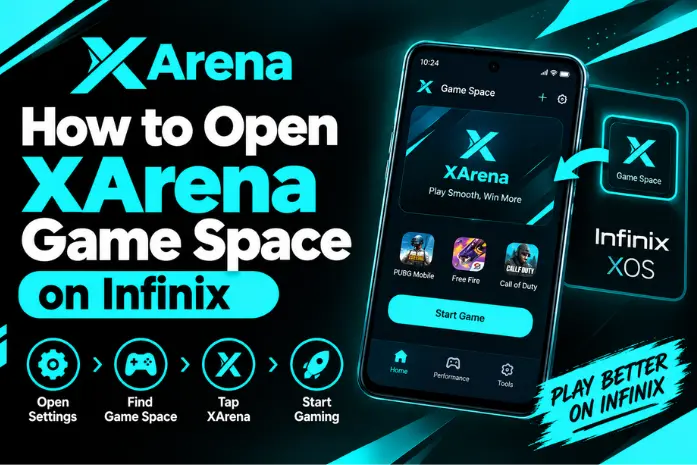
On supported devices, XArena can be connected with the phone’s gaming features. This means you may not always find it by searching for a normal standalone app.
Check your phone’s gaming-related settings and app list before assuming that XArena is completely missing.
Check Your Infinix XOS Version
Checking your XOS version is one of the first things you should do when XArena is missing.
How to Check Your XOS Version
Open Settings on your Infinix phone and go to the section that shows your phone information, such as My Phone or About Phone. The exact menu name can vary depending on your device and XOS version.
Look for the installed XOS and Android version. Keep these details available when checking XArena compatibility.
Why XOS Version Matters
XArena features can depend on the software running on your phone. If your device has an older or different XOS version, the available gaming tools may not match those shown in guides for other Infinix phones.
This is why you should check your own phone’s software instead of following instructions made for a different model.
Check if Your Phone Supports XArena
Your exact Infinix model is another important factor.
Check Your Exact Infinix Model
Go to your phone’s information section and confirm the model name. Then check the official software or product information for that specific device.
Do not assume that because XArena works on one Infinix phone, it must also work on every other model.
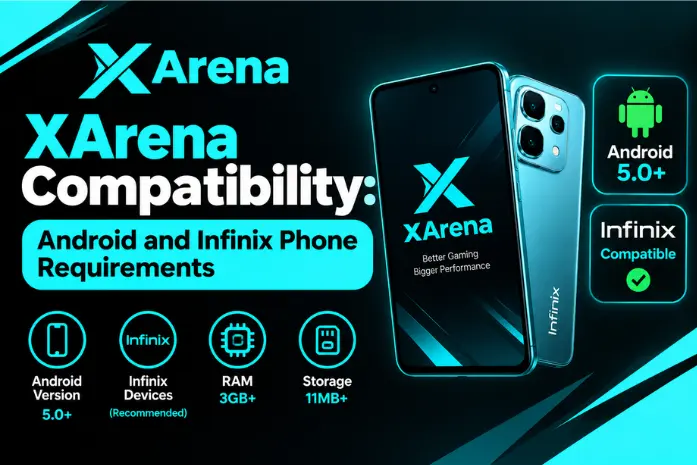
Check Android and XOS Requirements
Also check your Android version and XOS version. Your available storage and the XArena version can matter when installing an APK.
Your current XArena information already identifies Android version, phone model, XOS version, available storage, APK version, and game compatibility as important compatibility factors.
Look for Game Space on Your Phone
If you cannot find an app named XArena, check whether your phone has a Game Space or gaming feature.
Search for XArena
Open your app list and search for XArena. If it does not appear, also search for Game Space or another gaming-related option.
The name and location of gaming features can differ between Infinix models and software versions.
Check the Gaming Features
Open the available gaming feature and see whether your installed games can be added or managed there.
XArena can provide a central place for supported games and gaming performance options. The available tools may include game management, performance settings, or quick gaming controls depending on the device.
Update Your Infinix System Software
If your phone has an older software version, checking for an official update is a useful step.
Check for Available Updates
Open Settings and look for the system or software update section. If an official update is available for your device, follow the instructions shown by the phone.
Do not use an unofficial system update just to get XArena.
Restart After Updating
After the update finishes, restart your phone and check the app list and gaming features again.
A restart can also help if a system feature did not load correctly after the software update.
Restart Your Infinix Phone
A simple restart is worth trying if XArena was previously available but is now missing.
Turn your phone off or use the restart option, wait for the system to load completely, and then check for XArena or Game Space again.
Restarting will not make an unsupported feature appear, but it can help with temporary software problems.
Clear XArena Cache and App Data
If XArena appears on your phone but does not open or work correctly, you can check its app settings.
Clear the Cache First
Go to Settings > Apps and find XArena if it is listed. Depending on your XOS version, you may see storage or cache options.
Clearing the cache removes temporary files and is a safer first troubleshooting step.
When to Clear App Data
If clearing the cache does not help, you may have the option to clear the app data.
Remember that clearing app data can remove saved app settings and may require you to configure the application again.
If XArena does not appear in your app list at all, clearing its cache will not solve the problem. In that situation, focus on compatibility and Game Space availability.
Reinstall XArena APK
If XArena previously worked on your phone and you now need to reinstall it, make sure the version you use is compatible with your device.
Check APK Compatibility First
Check your Android version, phone model, XOS version, and the XArena version before installing.
An APK made for another device or software version may install incorrectly or fail to provide the expected features.
Avoid Modified APK Files
Avoid downloading modified or unknown APK files simply because XArena is missing.
An APK from an untrusted source can create security and compatibility risks. Your original content also recommends checking the source and permissions before installing an APK.
What to Do if XArena Is Still Missing
If XArena is still not showing after checking your software and gaming features, your device may not support that particular XArena version or feature.
Check Your Device Support
Confirm your exact Infinix model, Android version, XOS version, and available gaming features.
If the feature is not supported by your device software, there may not be a reliable way to add the same built-in functionality manually.
Use the Built-In Gaming Mode
If your Infinix phone provides another gaming mode or Game Space feature, you can use the available built-in tools instead.
This is generally better than installing random APK versions that were designed for a different device.