XArena APK Not Working? Common Problems and Fixes
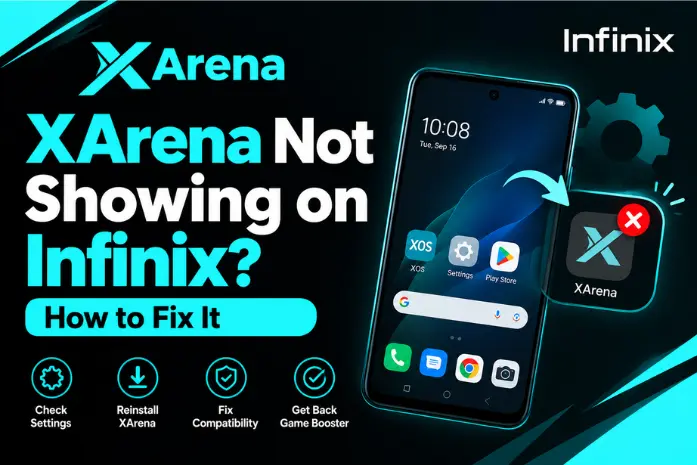
If XArena APK is not working, the problem can come from the APK version, Android version, XOS environment, device compatibility, installation process, or a problem with the app itself.
Sometimes XArena may install but crash when opened. In other cases, the APK may not install at all, games may not appear, or some gaming settings may fail to work.
The best approach is to identify the exact problem first and then apply the relevant fix.
Why Is XArena APK Not Working?
There is no single reason why XArena stops working. The problem usually depends on what happens when you try to use it.
For example, an XArena APK won’t install is different from XArena crashing after opening. Similarly, if XArena opens normally but does not detect your games, reinstalling the app may not solve the actual problem.
Common causes include:
- Unsupported Android version
- Different XOS version
- Incompatible Infinix phone model
- Incorrect APK version
- Installation restrictions
- Corrupted APK file
- App cache problems
- Game compatibility issues
- Missing or unavailable XArena features
Start by identifying which of these situations matches your problem.
Check Your Android Version
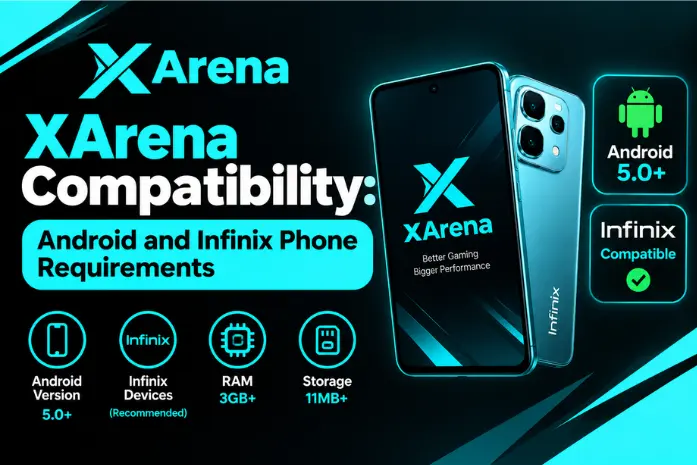
Your Android version can affect whether a particular XArena APK can be installed and used.
If you are using an older Android version with an APK designed for a newer environment, installation may fail, or the app may not work correctly.
Check your Android version in your phone’s About Phone or system information section.
Then compare it with the Android requirement of the XArena APK you are trying to install.
If the APK requires a newer Android version, downloading the same APK repeatedly will not fix the problem. You need a version that is actually suitable for your device.
Check XOS and Device Compatibility
If the APK installs but XArena is not working correctly, check your Infinix phone model and XOS version.
XArena features can vary between Infinix devices and XOS versions. Your phone may support some gaming features while another model provides additional options.
Check:
- Exact Infinix model
- Android version
- XOS version
- XArena version
This is especially important if XArena worked on another Infinix phone but does not work on yours.
XArena APK Won’t Install
If the XArena APK won’t install, first identify what happens during installation.
APK Installation Blocked
Android can block APK installation when the phone does not allow installation from the source where the file was obtained.
Check your phone’s security or app-installation settings and allow installation from the source you are using if you trust the APK.
The exact setting location can vary between Android and XOS versions.
App Not Installed
If Android displays an App not installed message, the APK may not be compatible with your phone.
Other possibilities include:
- An incompatible Android version
- A conflicting existing installation
- Incorrect APK build
- Corrupted APK file
- Insufficient storage
Check compatibility before trying another installation.
Installation Fails
If installation stops before completion, check your available storage first.
A nearly full phone can cause installation problems. Free up some storage and restart the phone before trying again.
If the problem continues, the APK file itself may be incomplete or incompatible.
Incompatible APK Version
A newer XArena APK is not automatically compatible with every Infinix phone.
If the APK was designed for a different Android version or device environment, it may fail during installation or may not work correctly after installation.
Check the APK version and requirements before choosing another build.
XArena APK Crashes After Opening
If XArena is crashing immediately after opening, start with simple troubleshooting steps.
First, close XArena completely and restart your phone.
Then open XArena again.
If it continues crashing, check whether the installed version is suitable for your Android and XOS environment. You can also clear the app cache before considering a reinstall.
If the app started crashing after you installed a newer version, the problem may be related to that specific version.
XArena Is Not Detecting Games
If XArena opens but your installed games do not appear, check the game’s compatibility first.
Make sure the game is properly installed and visible among your phone’s installed apps.
Then open XArena and check whether the gaming interface provides an option to add or manage games.
If a particular game still does not appear, it may not be supported by the gaming features available on your device or XOS version.
Your main XArena content also identifies game-specific settings as a separate part of the app’s functionality, so game support should not be assumed to be identical across all titles.
XArena Settings Are Not Working
Sometimes XArena opens normally, but one or more settings do not respond.
Before assuming that the app is broken, check whether the setting is actually available for your phone.
XArena features can vary by device and software version. Performance, touch, network, FPS Optimization, temperature, and floating gaming tools may not all be available on every device.
If only one setting is missing, this can be a compatibility limitation rather than an app failure.
If several settings stopped working at the same time, restart the phone and check the XArena version.
XArena Performance Features Are Not Working
If XArena opens but you do not notice a difference in gaming performance, do not assume that the APK is completely broken.
Performance depends on more than XArena. Your phone’s hardware, available RAM, temperature, background apps, game settings, network connection, and the specific game can all affect the result.
Close unnecessary background apps and restart the phone before testing again.
Also remember that gaming tools cannot remove the hardware limitations of a phone. If a game is demanding for your device, XArena may not make every performance problem disappear.
Clear Cache and Restart XArena
Clearing the cache is a simple step to try when XArena starts behaving unexpectedly.
Open your phone’s app settings, find XArena, and look for the storage or cache options.
Start by clearing the cache rather than immediately deleting all app data.
After clearing the cache:
- Close XArena.
- Restart your phone.
- Open XArena again.
- Test the problem feature.
If the issue remains, check the app version and device compatibility before taking more drastic steps.
Reinstall a Compatible XArena Version
If XArena still does not work, reinstalling a compatible version can help when the existing installation is corrupted or incomplete.
Before reinstalling:
- Remove the current XArena installation if necessary.
- Restart your phone.
- Check the Android and XOS versions.
- Confirm that the XArena APK matches your device.
- Install the compatible version.
- Open XArena and test it again.
Do not keep installing random APK versions. If the underlying problem is compatibility, repeated installations will not solve it.
When Should You Try Another Version?
Consider another XArena version when the current version:
- Will not install
- Crashes repeatedly
- Does not work correctly after installation
- Requires an Android version your phone does not have
- Does not match your device environment
- Started causing problems immediately after an update
Before changing versions, identify what changed. If XArena worked correctly before a version update, comparing the previous and current versions can help narrow down the problem.
The goal is not simply to find the newest APK. The goal is to find a version that is compatible with your particular phone and software environment.