How to Open XArena Game Space on Infinix
XArena Game Space is designed to bring gaming-related tools and settings into one place on supported Infinix devices. Depending on your phone model and XOS version, it may appear as XArena, Game Space, or as part of the phone’s built-in gaming features.
If you want to open XArena on Infinix, start by checking the app menu for XArena or Game Space. If you cannot find it, the feature may be placed somewhere else or may not be available on your specific device.
What Is XArena Game Space?
XArena Game Space is a gaming-focused feature associated with the Infinix XOS experience. It can provide access to gaming tools while a supported game is running.
Depending on the device, available features can include performance-related controls, gaming panels, touch response options, network-related tools, and floating gaming tools. Not every Infinix phone provides exactly the same options.
The main purpose of Game Space is to make gaming controls easier to access without leaving the game.
Where Is XArena Game Space on Infinix?
The location of XArena Game Space can vary between Infinix phones and XOS versions. Some devices may show XArena directly in the app list, while others may integrate gaming features into the system’s gaming interface.
If you do not see XArena immediately, use your phone’s app search and look for XArena or Game Space.
You should also check whether your device’s XOS version supports the feature. Infinix has included XArena with gaming experiences on several devices, but the exact implementation can differ between models.
How to Open XArena Game Space
The easiest way to open XArena Game Space is to look for XArena or Game Space in your Infinix phone’s available apps.
Open the App Menu
Start by opening the main app menu on your Infinix phone. Depending on your XOS launcher and settings, your apps may appear on the home screen or inside an app drawer. Look through the installed apps for an icon or name related to XArena or gaming.
Find XArena or Game Space
Use the phone’s search function if you cannot find it manually. Type XArena first. If there is no result, search for Game Space or another gaming-related system feature shown on your device.
If neither appears, do not assume that the APK is missing. Your particular Infinix model or XOS version may use a different gaming feature.
Select Your Game
After opening XArena Game Space, check the games that are available inside the gaming interface. If your game is already listed, select it to launch the game through the gaming environment. If it is not listed, check whether the interface provides an option to add an installed game.
Open the Gaming Panel
Once the game starts, look for the available gaming panel or floating gaming tools. The exact gesture or button can vary by device and XOS version. Some versions provide quick-access gaming controls while the game is running.
Adjust Available Settings
Use the settings that are actually available on your phone. Depending on the version, these can relate to performance, FPS Optimization, touch response, RAM management, network handling, temperature monitoring, or other gaming tools.
Avoid changing every setting at once. Test one option at a time so you can see whether it improves your gaming experience.
How to Add a Game to XArena
If your game does not appear automatically, open XArena Game Space and look for an Add Game or similar option.
Select the game from the installed apps shown by the gaming interface. After adding it, the game should appear in the available game list if your device supports that function.
The exact button name may be different on different XOS versions. If you cannot find an option to add games, check whether your phone uses a different gaming management interface.
How to Access Gaming Tools While Playing
After launching a supported game through XArena Game Space, you may be able to open the gaming panel from the screen.
The available tools depend on your Infinix model and software version. XArena-related gaming features can include floating tools and controls intended to help players manage settings without completely leaving the game.
If the gaming panel does not appear, check the XArena settings before assuming that the feature is broken.
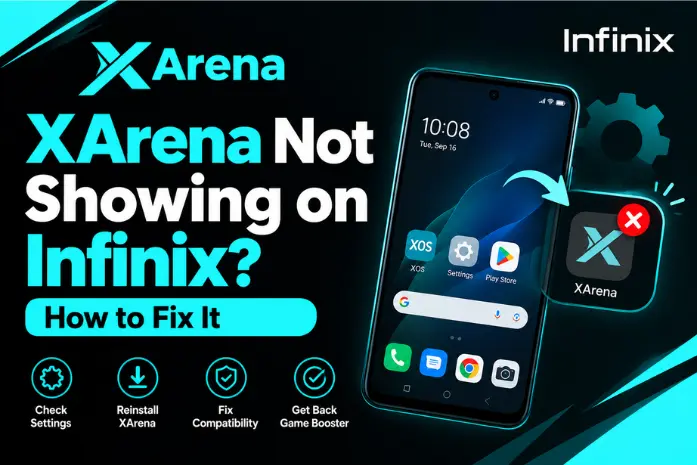
What to Do if Game Space Is Missing
If XArena Game Space is missing from your Infinix phone, first check your device and software version.
Some possible reasons include:
1: Your Infinix model may not support the same XArena implementation.
2: Your XOS version may use a different gaming interface.
3: The gaming feature may be located somewhere else.
4: A system update may have changed the available gaming features.
5: The installed XArena APK may not match your device.
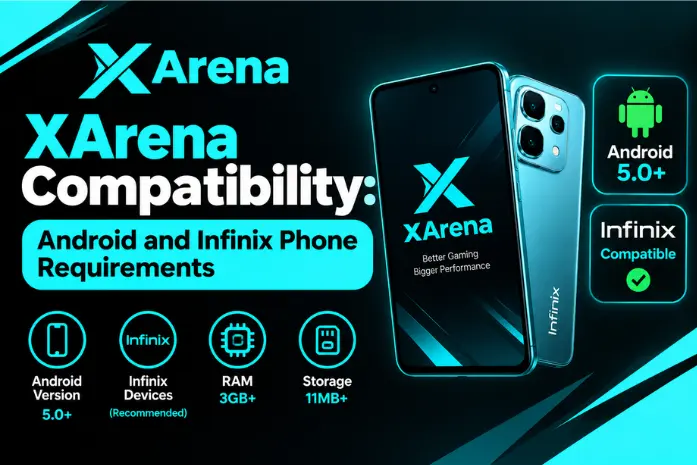
Your existing XArena information also notes that compatibility can depend on the phone model, Android version, XOS version, storage, APK version, and game compatibility.
If XArena disappeared after an update, restart the phone and check the available system gaming features again. Avoid installing a random APK simply because the XArena icon is missing.
Can You Use XArena on Every Infinix Phone?
No. You should not assume that every Infinix phone offers the same XArena Game Space features.
Infinix has used XArena across different devices and XOS versions, but the available features can vary. Your phone model, Android version, XOS version, and the particular XArena version can affect what is available.
If your phone does not show XArena, check the built-in gaming features first. The absence of the XArena name does not necessarily mean that your phone has no gaming tools.